How to Remove Profanity in DaVinci Resolve (and a Faster Way)
DaVinci Resolve has no built-in profanity filter. Here is how to mute or bleep swear words manually in Fairlight, plus a faster automatic method.
DaVinci Resolve does not have a built-in profanity filter. If you need to mute or bleep swear words, the manual route is Fairlight — DaVinci's audio editor. The process works, but the slow part is finding each word first. This guide covers both the manual method and a faster approach using automatic detection.
Why DaVinci Resolve has no built-in profanity filter
Most video editors leave profanity filtering out of scope. They handle cuts, color, and effects, but deciding which words to censor is treated as an editorial decision that belongs to a separate step. DaVinci is no different: Fairlight gives you full control over the audio timeline, but it expects you to already know the exact timestamps before you start editing.
That is the real bottleneck. Listening through a 30-minute recording to find every slip is tedious and easy to miss. The manual method below assumes you already have a list of timestamps; the section after it covers how to get that list without listening through yourself.
Manual method: muting words in Fairlight
This workflow replaces a word with silence. If you want a bleep tone instead, add it as a separate audio track and position it at the same timecode.
Step 1: Open the Fairlight page
Switch to the Fairlight tab at the bottom of the DaVinci interface. You will see the full audio timeline with your clip's waveform.
Step 2: Locate the word on the timeline
Use the timecode display to jump to the start of the word you want to mute.
Zoom into the waveform (scroll horizontally with Ctrl + Scroll on Windows,
Cmd + Scroll on Mac) until you can see individual words as distinct peaks.
Step 3: Split and isolate the word
Place the playhead just before the word starts. Use the Blade tool (B) to cut
there, then move the playhead to just after the word ends and cut again. You now
have a short isolated clip that contains only that word.
Step 4: Mute or silence the clip
Select the isolated clip and either:
- Mute it: right-click the clip → Clip Attributes → set Volume to
-infdB, or pressMwith the clip selected to toggle mute on the track (note: track mute affects the whole track, so use clip-level volume instead for selective muting). - Delete and fill with silence: delete the clip and use
Shift + Deleteto close the gap with a silence region rather than ripple-deleting adjacent clips.
Step 5: Add a bleep tone (optional)
If you prefer a bleep to silence, import or generate a 1000 Hz WAV tone. Create a new audio track, place the bleep clip at the same start timecode as your silenced region, and trim it to the same length. Adjust clip volume so the bleep sits at a similar level to the surrounding dialogue.
Step 6: Repeat for every flagged word, then export
Once all words are handled, switch back to the Cut or Edit page and export as normal.
The slow part: finding all the words
The Fairlight method works, but step 2 — locating each word — is where most of the time goes. If you have a 20-minute video with a dozen slips scattered throughout, you either scrub through the whole timeline or pay close attention during the edit hoping to catch them all.
There are two ways to solve this:
Use DaVinci's subtitle tools (if you have Studio)
DaVinci Resolve Studio (the paid version) can auto-generate captions. Once you have a transcript, scan the text for flagged words and note their timecodes. This requires the paid licence and still asks you to do the word-matching yourself.
Run automatic detection outside DaVinci first
Export your edit from DaVinci (or use the original recorded file), run it through a profanity detector, and get a timestamped list of every flagged word. Then bring those exact timecodes into Fairlight and work through them in minutes instead of hours.
A faster combined workflow
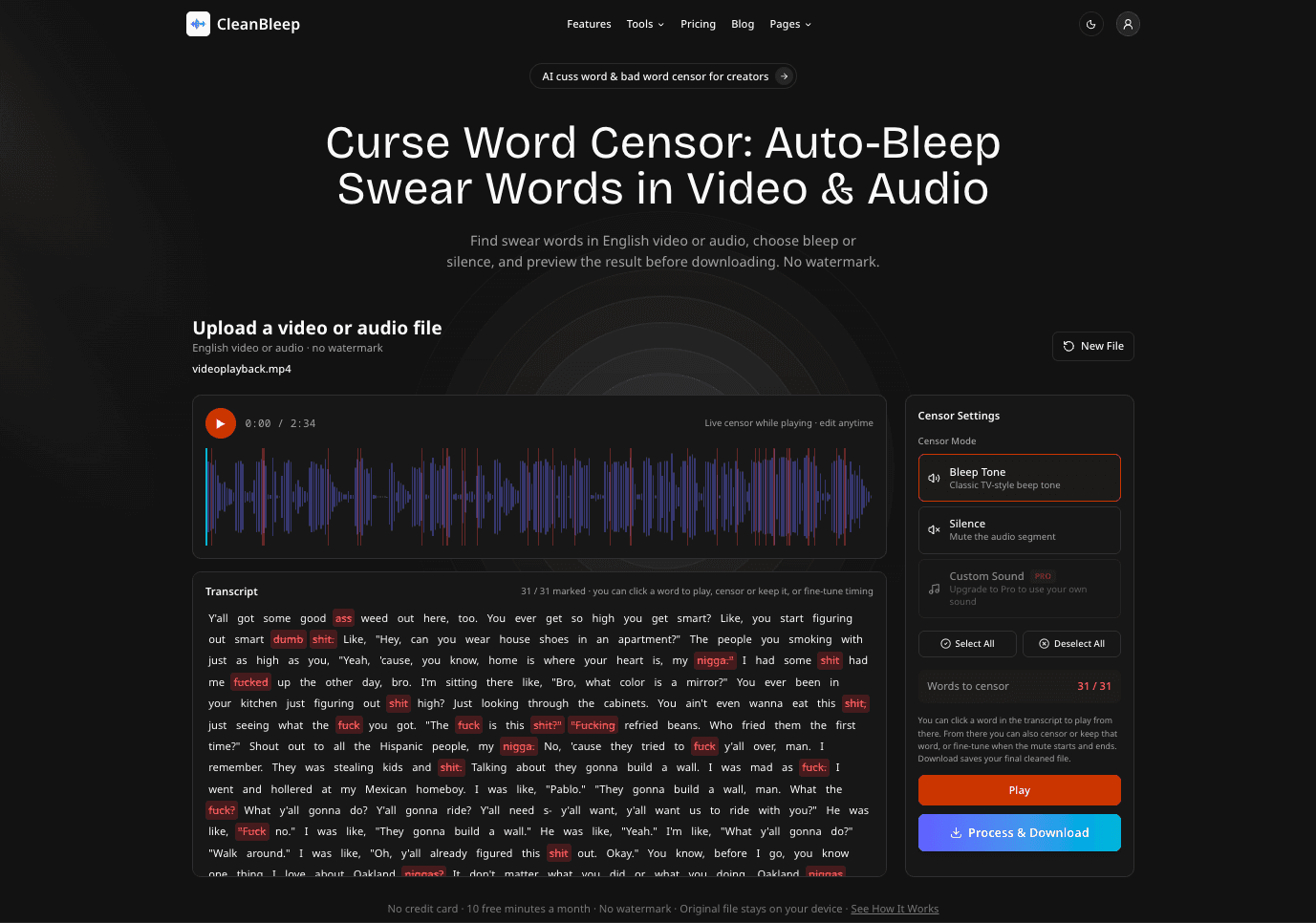
CleanBleep's Bad Word Detector transcribes English speech and checks every word against a profanity list. You get a timestamped report — word, start time, end time — that you can export as CSV. Use that CSV as your punch list in Fairlight:
- Export your cut from DaVinci as an MP4 or MOV.
- Upload it to CleanBleep Bad Word Detector.
- Review the detection report. Dismiss false matches, note any misses.
- Export as CSV — you now have exact timecodes for every word you want to mute.
- Back in DaVinci Fairlight, jump to each timecode from the list and apply the blade / silence method above.
This splits the problem in two: detection (fast, automatic) and editing (precise, in your timeline). You stay in DaVinci for the final cut and keep full control over the result.
If you do not need to stay in DaVinci
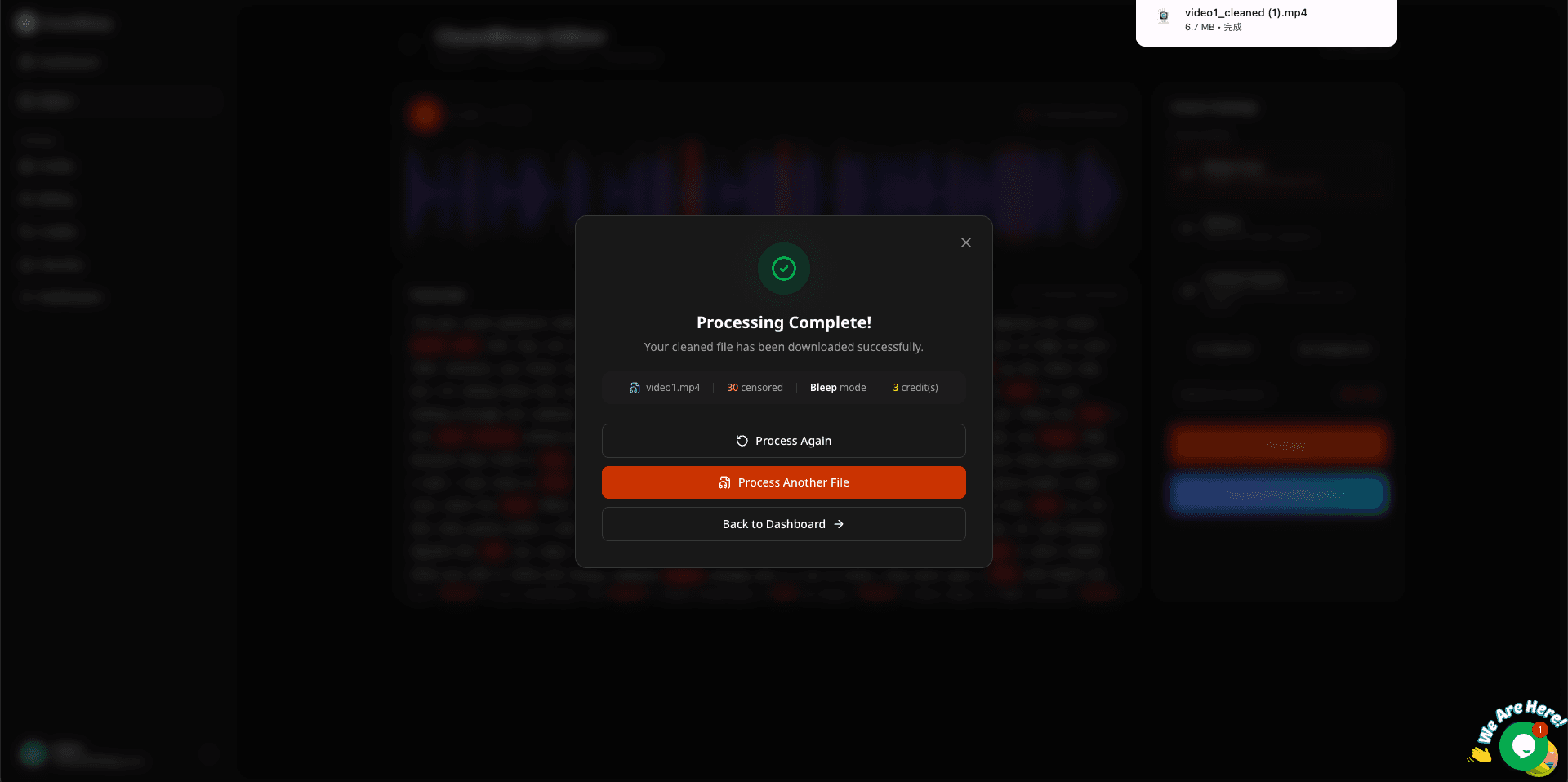
If your only goal is a clean video file — not ongoing timeline editing — you can skip Fairlight entirely. CleanBleep's Censor Video tool handles detection, review, and export in one step. Upload your exported MP4 or MOV, the audio is transcribed and each swear word is flagged, you review and confirm what to mute, and the cleaned file downloads with the video stream untouched (same resolution, same frame rate).
This is the faster option when you need a clean version for upload and do not need the project file open again.
Which method to use
| Situation | Best approach |
|---|---|
| Staying in DaVinci, need precise timeline control | Fairlight manual method with a CleanBleep CSV as your punch list |
| Need a clean export file, not re-editing the timeline | CleanBleep Censor Video — detect, review, download |
| Already have DaVinci Studio and a subtitle track | Use existing captions to find words, then Fairlight to mute |
| Long recording with many unknown slips | CleanBleep detection first, then decide whether to go back into DaVinci |
FAQ: What if a DaVinci profanity filter is not working?
Automatic detection can miss a word, or flag the wrong one, when the speech is not English, the volume is too low, two people talk over each other, or a term is mistaken for a swear word.
If you used CleanBleep and a word was missed, play the nearby line in the transcript, manually mark that word to censor, and dismiss any false match. Then take the corrected timestamps back into Fairlight and mute or bleep only those spots. The same review step helps if another filter left you with bad timings: fix the list first, then cut.
Related
- How to bleep curse words in a video — compares Premiere Pro, DaVinci, CapCut, and CleanBleep side by side
- Bad Word Detector — get a timestamped CSV of every flagged word
- Censor Video — detect and bleep in one step, no timeline editing required